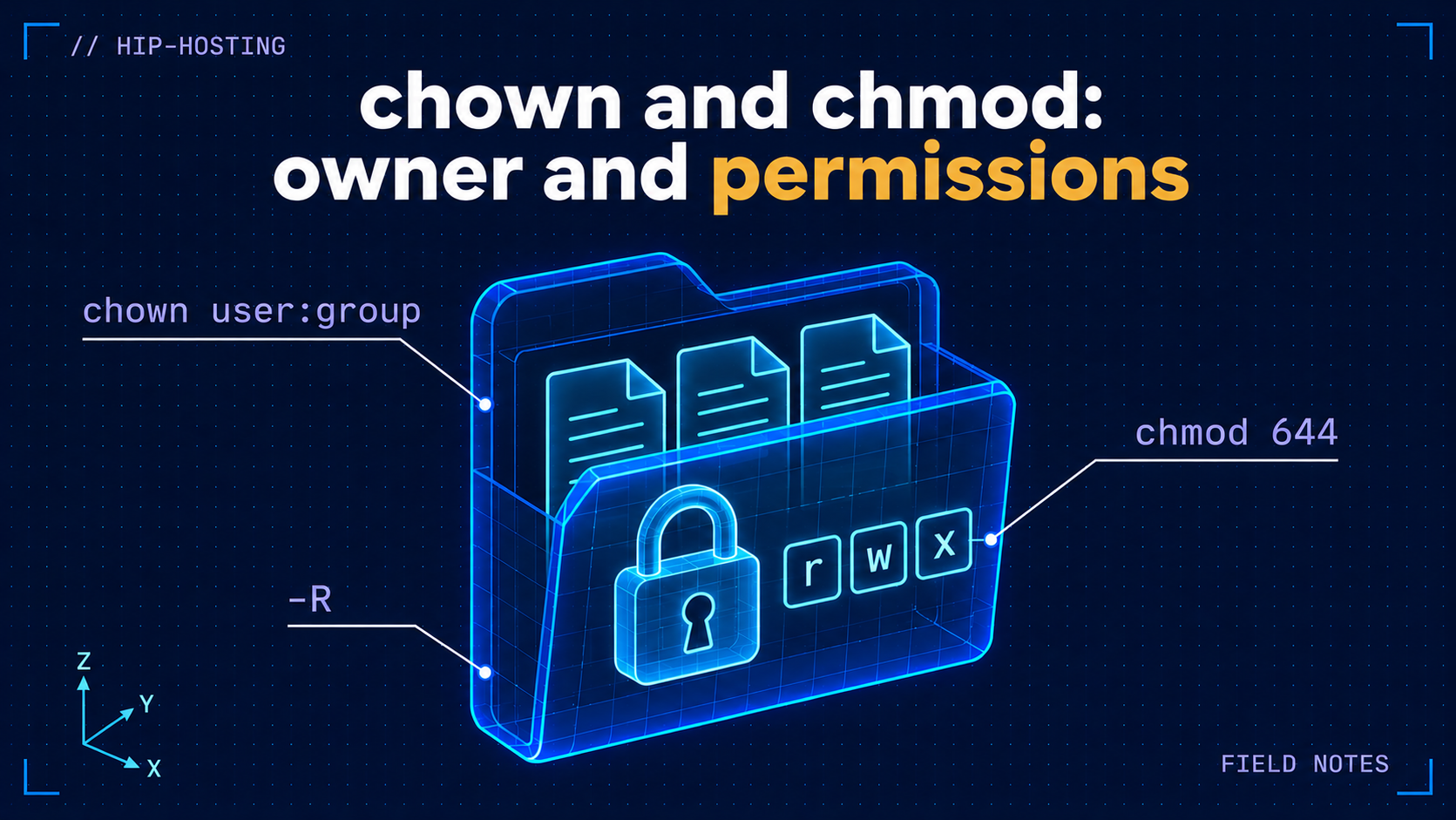
To change the owner, run chown user:group file; to change permissions, run chmod 644 file (or chmod u+x file). Add -R for a whole folder, but be careful with permissions: chmod -R 755 also makes every regular file executable. Below is what each command does, how to read ls -l, how permissions on a file differ from permissions on a directory, how to set safe permissions for a website, what setgid and umask are, and what invalid user, Operation not permitted and Permission denied mean. All outputs were captured on a test server.
Everything below ran on a test VPS with Ubuntu 24.04.5 and GNU coreutils 9.4. For the experiments we created two users (chlab_deploy and chlab_dev), a group chlab_team and a site folder /srv/chlab/site with the directories app, uploads, logs, the files .env and deploy.sh, plus a symbolic link current. For the experiments with links and groups we also created helper folders /srv/chlab2 and /tmp/chlab_x. After the tests the users and all the folders were deleted. In the text the user chlab_dev is simply "the developer" (a member of the group chlab_team). The commands in the examples ran as root, except where the developer is meant; on your server add sudo.
How to read owner and permissions: ls -l and stat
Every file in Linux has an owner, a group and a set of permissions for three categories: the owner (u), the group (g) and everyone else (o). The easiest way to see them is ls -l:
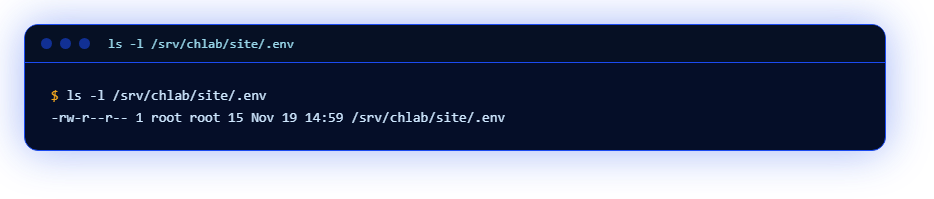
The first character is the type (- file, d directory, l link). The next nine are the permissions in triplets: rw- for the owner, r-- for the group, r-- for others. Then the link count, the owner (root), the group (root), the size and the date. If you need numbers instead of letters, use stat:
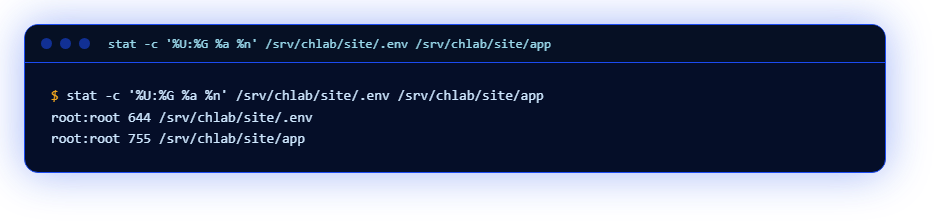
The %a format gives octal permissions (644, 755), %A gives the familiar -rw-r--r--. A plain stat shows the same thing as one line: Access: (0644/-rw-r--r--), with the owner and group next to it in the Uid and Gid fields.
How to change owner and group with chown
The format is chown owner:group file. Either part can be omitted. Only root (that is, sudo) can change the owner; more on that below. What different forms do:
| Command | Result in ls -l |
|---|---|
chown chlab_deploy .env | owner chlab_deploy, group unchanged (root) |
chown chlab_deploy:chlab_team .env | owner chlab_deploy, group chlab_team |
chown :chlab_team deploy.sh | owner unchanged, group chlab_team |
chgrp chlab_team app.log | same as chown :chlab_team: only the group changes |
chown 1500:1500 a.jpg | numeric UID and GID; ls -l shows plain numbers when there is no such user, and ls -ln always does |
One form needs attention: chown user: (a colon with no group) changes the group to that user's primary group. The old dot form works the same way but prints a warning:
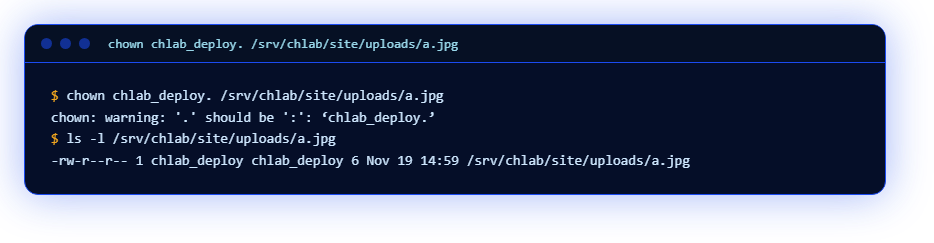
The group became chlab_deploy instead of staying as it was. If you only need to change the owner, do not add a colon at all.
Recursively: chown -R
The -R flag walks the whole tree:
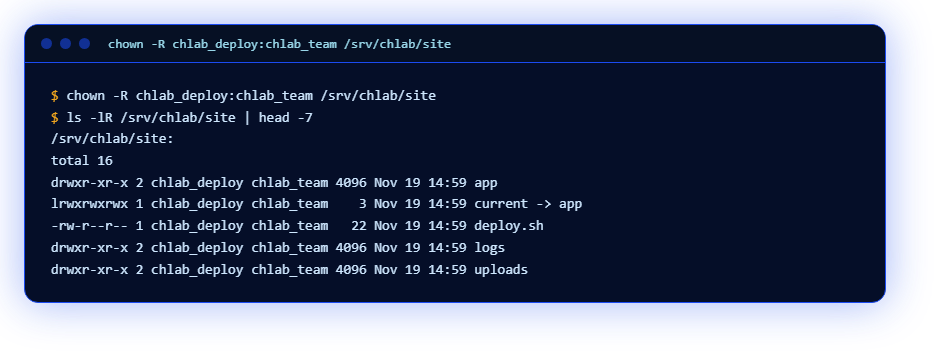
Mind hidden files: plain ls -l does not show .env, but chown -R and chmod -R do touch it if you give the directory itself. One trap: if you write the path as a glob like /srv/chlab/site/*, the shell does not include dotfiles, and .env will not make it into the command. Pass the directory as a whole.
Symbolic links: what exactly changes
Without extra flags, chown name link changes the owner of the target, not of the link itself. In the test, current points to the directory app, and before the experiment the whole tree was owned by root again:
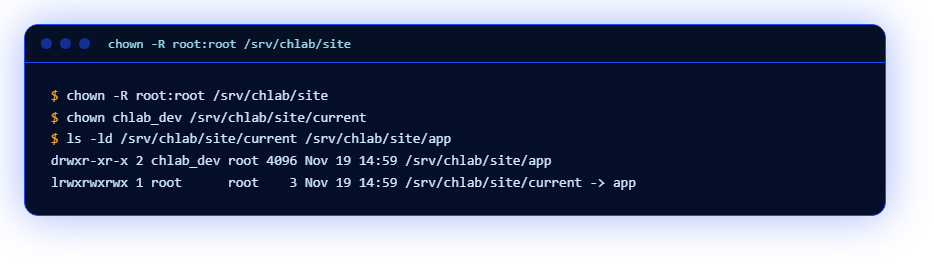
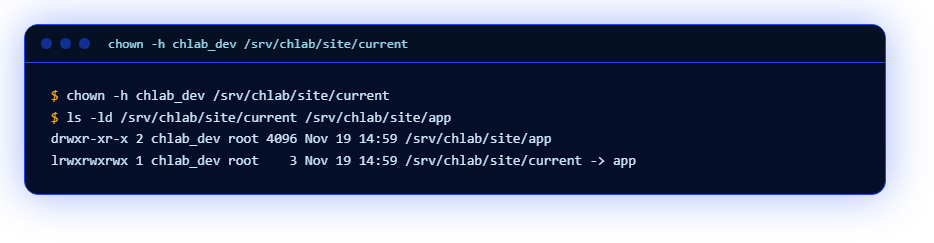
The owner of the directory app changed, and the link stayed with root. To change the link itself, you need -h:
At the same time, chown -R does not follow links: in the chown -R example above, the recursive change updated the link current itself (it got chlab_deploy:chlab_team). A separate test with a link to a directory outside the tree confirmed it:
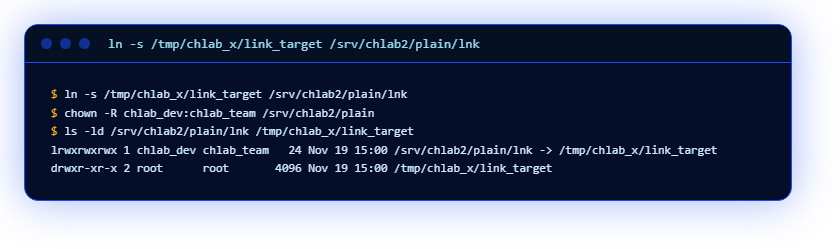
The link changed owner, while the directory it points to stayed with root. This is the safe default: -R does not leave the tree through links that point outside it. The flags -H or -L make -R follow links; there is no need to enable them without a reason.
Useful flags: -v, -c, --from and --reference
-vreports on every file, even when the owner did not change:ownership of '/srv/chlab/site/.env' retained as chlab_deploy:chlab_team.-creports only real changes:changed ownership of '/srv/chlab/site/.env' from chlab_deploy to chlab_dev. If nothing changed, the command stays silent.--from=userchanges only files currently owned by the given user. This lets you re-assign only the files that belong to one particular user in a tree:chown -R --from=chlab_dev chlab_deploy /srv/chlab/site.--reference=modelcopies the owner and group from another file:chown --reference=/srv/chlab/site/app deploy.sh.
How to change permissions with chmod: numbers and letters
Permissions are written as a number: read (r) = 4, write (w) = 2, execute (x) = 1, and the numbers add up. Three digits: owner, group, others.
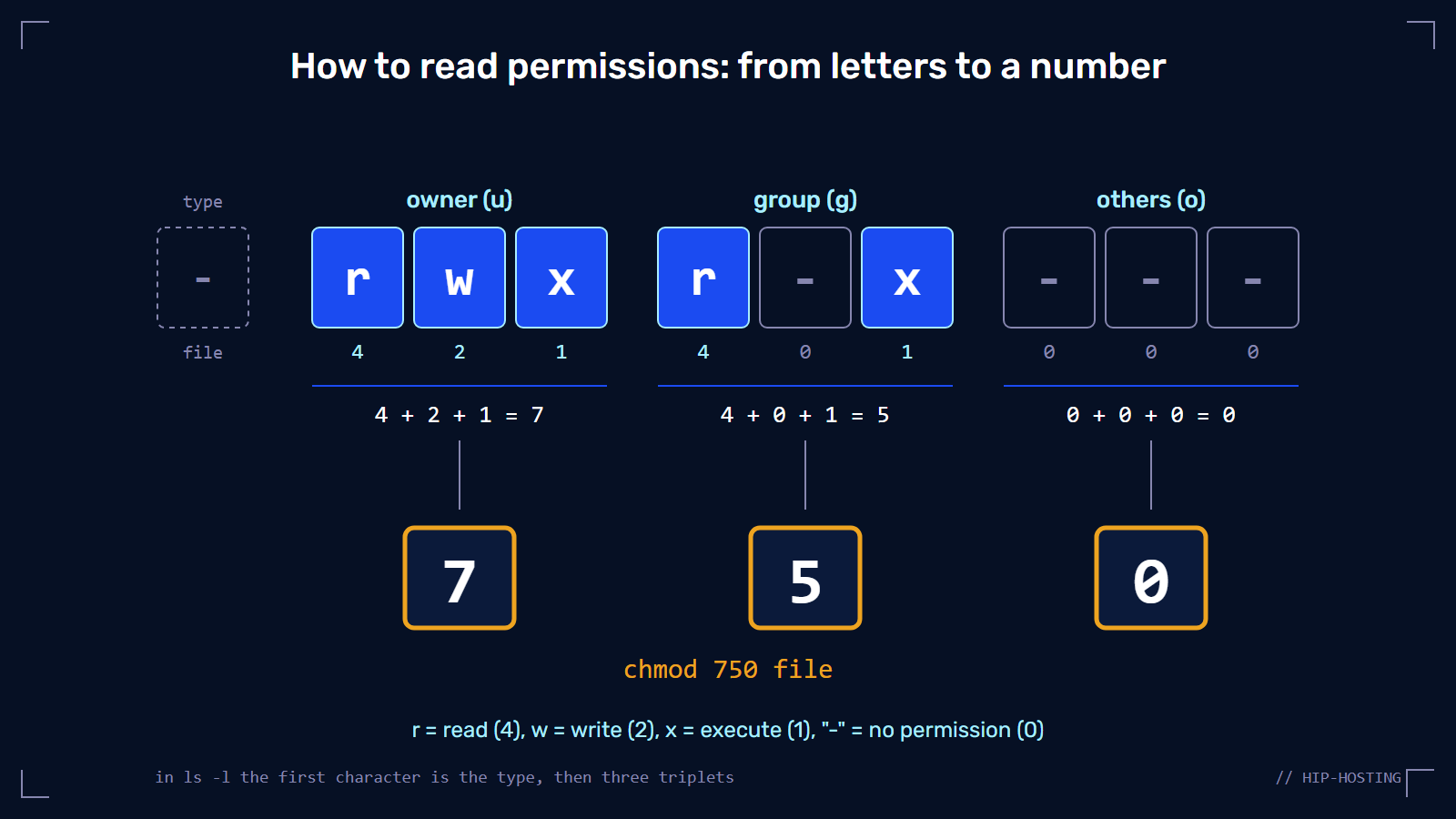
| Number | Permissions | Typical use |
|---|---|---|
| 600 | rw------- | secrets: .env, private keys |
| 644 | rw-r--r-- | regular site files |
| 640 | rw-r----- | files the group may read but not everyone |
| 750 | rwxr-x--- | scripts and directories for the owner and the group |
| 755 | rwxr-xr-x | directories and shared executables |
| 2775 | rwxrwsr-x | a shared group directory with inheritance (see setgid) |
Digits set permissions as a whole; letters change individual bits. The letter groups: u owner, g group, o others, a all; the operations: + add, - remove, = set exactly. All examples from the test (after the arrow: the permissions the file got):
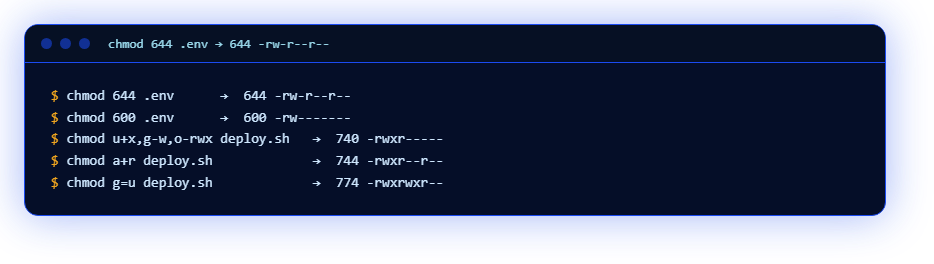
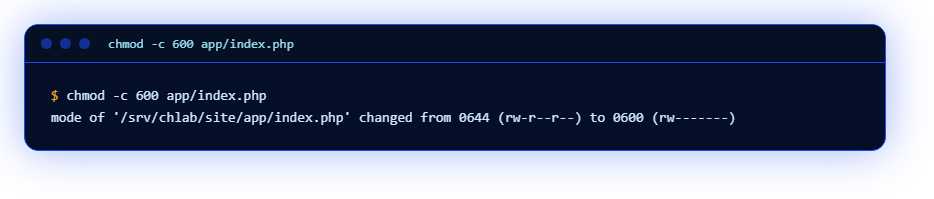
The last form, g=u, copies the owner's permissions to the group: handy when the group needs exactly what the owner has. To see what changed, add -c:
root ignores read and write permissions, a regular user does not
Set a file to 000 and read it twice:
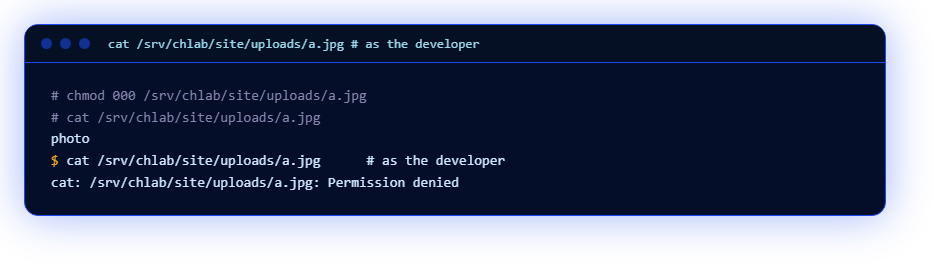
For root, read and write permissions are not an obstacle, so access must be checked as the user the application runs under (for example sudo -u user cat file), not as root. Otherwise you will see "it works" and then get an error in the web server.
Directory permissions: read, write and "enter"
For a directory, permissions mean something else. r lets you list the names inside, w together with x lets you create and delete files, x lets you "enter" the directory and reach files by name. We tested the logs directory as the developer, who is a member of the group chlab_team (paths shortened to names inside the site directory):
# chmod 600 logs; then the commands run as the developer
$ ls logs
ls: cannot open directory 'logs': Permission denied
$ cat logs/app.log
cat: logs/app.log: Permission denied
# chmod 750 logs
$ ls logs; cat logs/app.log
app.log
log
# chmod 640 logs
$ ls logs; cat logs/app.log
app.log
cat: logs/app.log: Permission denied
With 750 everything works (log is the file's contents). With 600 the group can neither list nor read, and with 640 (r but no x) the file names are visible, but nothing can be read. That is why directories need x: without it the tree is "closed" for the group and others even if the files themselves are open.
Recursive chmod: where it usually goes wrong
A common command in online advice is chmod -R 755 folder. It makes every file executable as well:
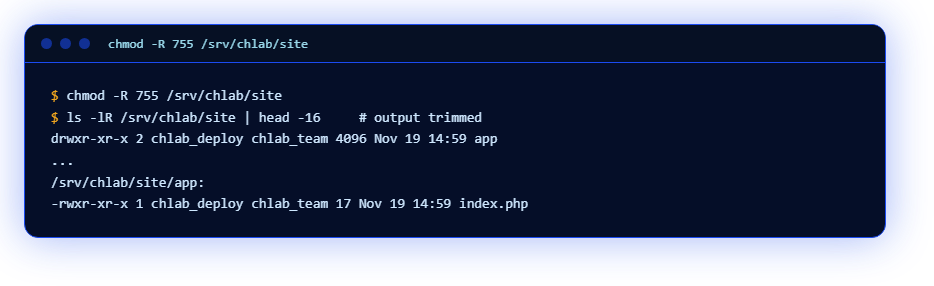
index.php and app.log became executable even though they do not need to (the trimmed output shows only index.php). There is a "smart" variant with a capital letter: X sets x only on directories and on files that already had it for at least one category. In the test it looks like this:
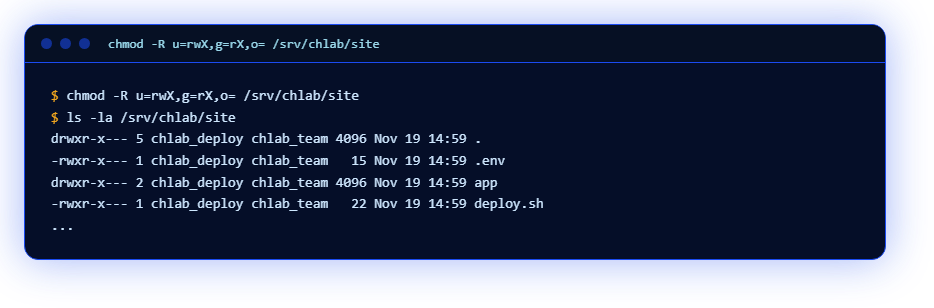
The result is not quite what you would expect: .env kept its x. The reason is that after the previous chmod -R 755 the file already had execute bits, and X keeps them on such files. So X is good for a "clean" tree, but it does not repair a mistake already made with 755.
The reliable way is find, which handles directories (-type d) and files (-type f) separately; {} + passes the found paths to chmod in batches:
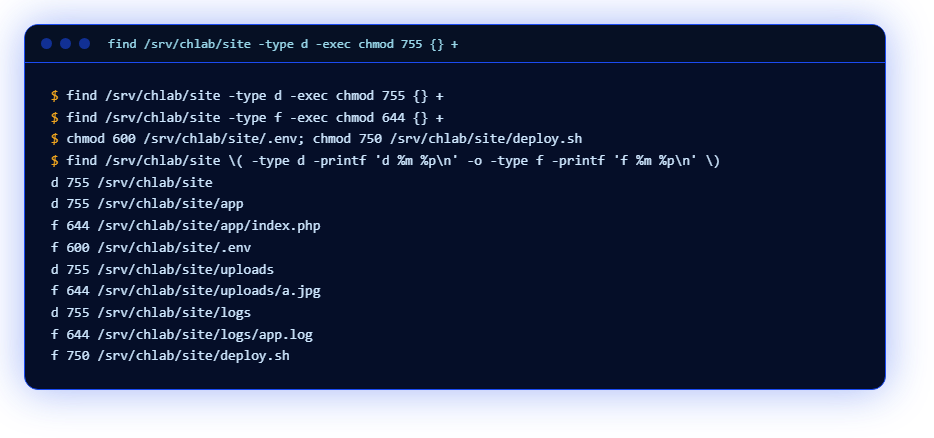
The last command, find ... -printf, prints the mode and type of every directory and file and serves as a check. Directories got 755, files 644, the secret 600, the script 750.
Why not chmod -R 777
Permissions 777 give write access to every user on the system and every process, including a compromised application on the same server:
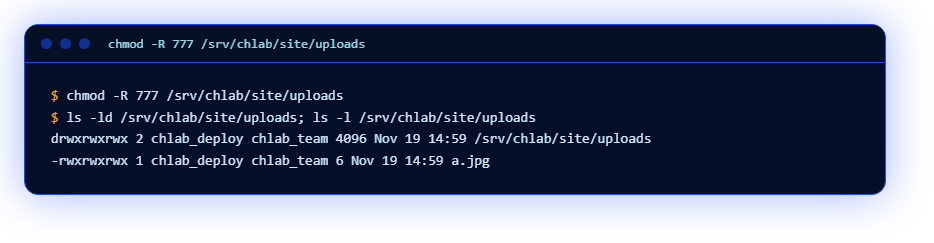
The uploaded file became executable and writable for everyone. If the application lacks access, find out which user it runs as and make that user the owner of the needed directory or add it to the group, but do not open access to everyone.
setgid and the sticky bit: a shared directory for a group
The fourth (leading) digit of the permissions holds the special bits (4 is setuid, which a site rarely needs). For a directory the most useful one is setgid (2): new files inside get the directory's group instead of the creator's primary group. You enable it with the letters g+s or with a leading 2:
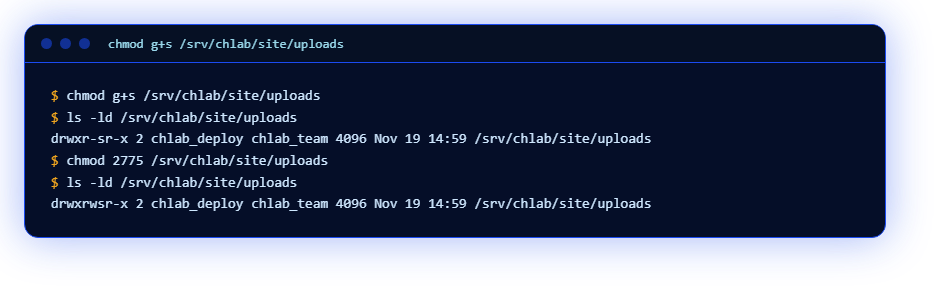
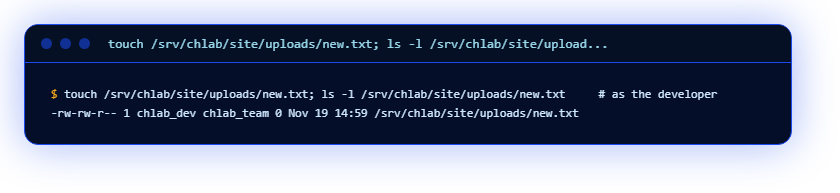
The letter s in place of the group's x is setgid. The developer (primary group chlab_dev) creates a file, and it gets the directory's group:
For comparison, the same developer created a file and a directory in a regular folder with permissions 775 and the group chlab_team, but without setgid. The group of the new objects was not chlab_team but the developer's own:
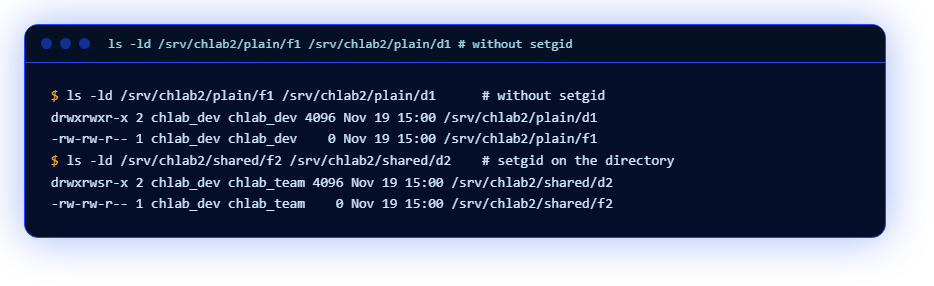
A new subdirectory also gets the s bit and passes it on. The permissions rw-rw-r-- come from umask 0002 of a regular user on Ubuntu, where every user has a private group named after them (su - chlab_dev -c umask returned 0002), so the group can write to the files created. These two mechanisms together, setgid on the directory and umask 002, let several people work in one folder without constant chown. More on umask below.
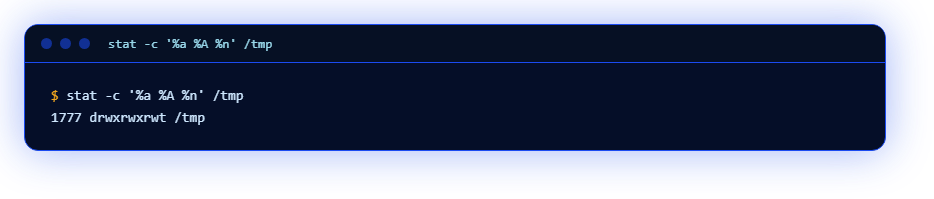
Another special bit is sticky (1), shown as the letter t. It is set on /tmp: everyone can write there, but only a file's owner, the directory's owner or root can delete a file there.
umask: what permissions new files get
The permissions of new files are set not by chmod but by the mask umask, which is "subtracted" from 666 (for files) and 777 (for directories). Strictly, the mask clears bits rather than subtracting, but for common masks the result is the same. In the test, root has the mask 0022; for comparison we created a file and a directory under three masks:
| umask | File | Directory |
|---|---|---|
| 077 | 600 | 700 |
| 022 | 644 | 755 |
| 002 | 664 | 775 |
You can change the mask for a session (umask 077) or in ~/.profile for a permanent login-shell setting (services have their own, for example UMask= in a systemd unit); in scripts it is convenient to set it in parentheses, for example (umask 077; touch file), so it does not "leak" into the rest of the script.
Permissions for a website: a cheat sheet
A typical set for a site folder that we checked in the test, and the role of each setting:
| What | Permissions | Why |
|---|---|---|
| Site directories | 755 | everyone can enter and read, only the owner can change |
| Regular files | 644 | everyone can read, only the owner can change |
.env and keys | 600 | owner only |
Scripts (deploy.sh) | 750 | run by the owner and the group |
| Uploads directory | 2775 | the group writes, new files inherit the group |
Which user must own the files and which group the web server needs depends on your stack. On Ubuntu, nginx and Apache usually run as www-data, but check with ps -eo user,group,cmd | grep -E '[n]ginx|[a]pache' (the brackets in [n]ginx keep grep from matching itself) instead of relying on it. The .env file must belong to the application's user, otherwise the app cannot read it at 600 (or give it 640 and the application's group).
Common errors and what they mean
| Message | Cause |
|---|---|
chown: invalid user: ‘nosuchuser’ | no such user: check the name with getent passwd |
chown: invalid group: ‘:nosuchgroup’ | no such group: getent group |
chown: cannot access '...': No such file or directory | wrong path |
chown: changing ownership of '...': Operation not permitted | you are not root: a regular user cannot give a file to someone else, including into a group they are not a member of; the same message appears if the file is not yours |
chmod: changing permissions of '...': Operation not permitted | you do not own the file |
chmod: invalid mode: ‘888’ | octal notation allows only digits 0 to 7 |
chmod: invalid mode: ‘u+q’ | in letter notation the permission letters are r, w, x, X, s, t (and u, g, o to copy permissions); there is no q |
Permission denied on read | no r on the file or no x on one of the directories in the path |
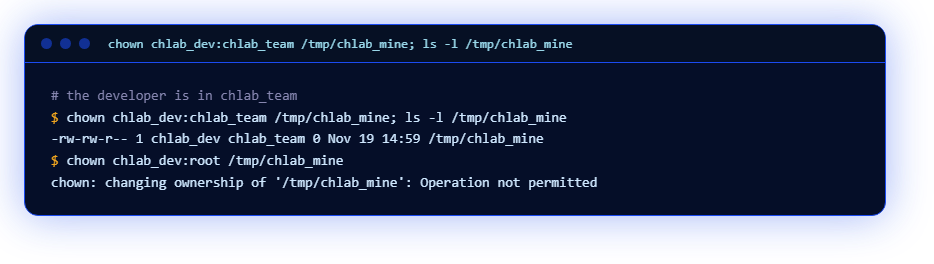
The difference between an allowed and a refused group change shows in an example: a regular user can change the group of their own file to one they belong to, but cannot change it to root:
Frequently asked questions
How do I find out which user the application runs as?
Look at the worker processes, not at the main process owned by root: ps -o user,group,cmd -C nginx shows both root and www-data, and you need the second one. For PHP, Python and Node.js look at the user of the application itself or of the PHP-FPM pool (ps -eo user,group,cmd | grep '[p]hp-fpm'). That user must have access to the files it needs.
What is the difference between chown and chmod?
chown answers "whose file is it", chmod answers "what can be done with it". Only the owner or root can change a file's permissions; only root can change its owner.
What does chmod +x mean?
It adds the execute permission. For a script it means you can run it as ./deploy.sh. For a directory, x means the right to enter it.
Do I need to change permissions after uploading a file over SFTP or scp?
Often yes: the owner of a new file is the user you logged in as, and the permissions depend on their umask. Check ls -l and fix what should be different (for example 600 for secrets).
Can I undo chown -R if I made a mistake?
Not automatically: common file systems (for example ext4) do not store previous owners. So before a bulk change, save a list: find /srv/site -printf '%U:%G %m %p\n' > owners.txt. There is no ready-made undo command: you have to write your own script from the list, and names with spaces need care.
What to remember
- Owner:
chown user:group file; group only:chown :group fileorchgrp. Only root can change the owner. - Numeric permissions: 600 for a secret, 644 for a file, 755 for a directory, 750 for a script. A directory needs
x, otherwise nobody can enter it. - Recursively, per type:
find -type d -exec chmod 755andfind -type f -exec chmod 644.chmod -R 755makes files executable too. - Do not fix
Permission deniedwithchmod -R 777: find out which user runs the application and give permissions to that user. - Check access as the application's user: root ignores read and write permissions.
- For a shared group folder:
chmod 2775(setgid) andumask 002. - Before a bulk owner change, save a list: the file system does not remember it.